Create a Conversational Spotify Ads Manager Using Claude Code and OpenAPI
Introduction
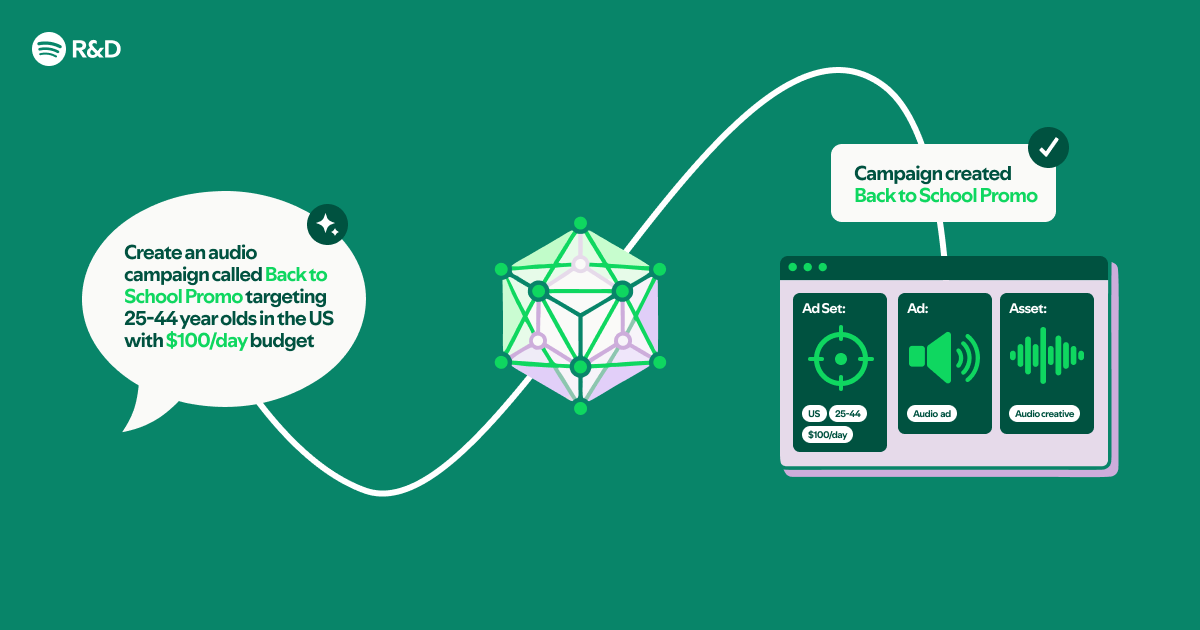
Imagine managing Spotify ad campaigns simply by typing requests in plain English. That’s exactly what you can achieve by combining the Spotify Ads API with Claude Code plugins—no compiled code required. This guide walks you through converting an OpenAPI specification and Markdown documentation into a conversational tool that understands your commands and executes ad operations on the fly.
What You Need
- Claude Code – installed and configured on your machine (the AI coding assistant)
- Spotify Ads API OpenAPI specification – a YAML or JSON file describing all endpoints, parameters, and authentication
- Markdown documentation – any reference materials (e.g., best practices, rate limits, common workflows)
- Spotify Ads API credentials – client ID, client secret, and ad account ID
- A text editor – any editor (VS Code, Sublime, or even terminal with
nano)
Step-by-Step Guide
Step 1: Set Up Your Project Directory
Create a fresh folder for your conversational manager. Inside it, store both the OpenAPI specification file (e.g., spotify-ads-api.yaml) and any Markdown documents you’ll use as context. Keeping everything in one place helps Claude Code locate resources quickly.
mkdir spotify-ads-assistant
cd spotify-ads-assistant
cp /path/to/spotify-ads-api.yaml ./
cp /path/to/ads-markdown-guide.md ./
Step 2: Launch Claude Code and Load the OpenAPI Spec
Run claude code in your terminal from the project directory. Once the AI assistant starts, instruct it to register the OpenAPI file as a plugin. Use a prompt like:
“I have a Spotify Ads API OpenAPI spec at ./spotify-ads-api.yaml. Please create a plugin from this spec so I can call endpoints conversationally.”
Claude Code will parse the spec and generate a plugin that maps natural-language commands to API calls.
Step 3: Supplement with Markdown Documentation
To make the assistant smarter about ad operations (e.g., optimal budget splits, creative guidelines), include your Markdown files as additional context. Use the /add command inside Claude Code:
/add ./ads-markdown-guide.mdNow the assistant can reference that documentation when you ask questions like “How do I create a campaign for a new album release?”
Step 4: Configure Authentication Credentials
Spotify Ads API requires OAuth 2.0. Provide your credentials to Claude Code as environment variables or inline during a conversation. For example:
“Set the SPOTIFY_CLIENT_ID, SPOTIFY_CLIENT_SECRET, and SPOTIFY_AD_ACCOUNT_ID so I can authenticate.”
The assistant will store these securely and request tokens automatically before each API call.
Step 5: Test a Simple Command
Try a basic request to verify everything works: “List my active campaigns.”
Claude Code will use the generated plugin to call the relevant endpoint (GET /campaigns) and display the results. If you encounter errors (e.g., missing scopes), refine your authentication setup.

Step 6: Expand with Complex Workflows
Now you can chain multiple steps. For instance: “Create a new campaign called ‘Summer Vibes’ with a daily budget of $50, targeting listeners aged 18–34 in the US. Then add a creative with the image URL from my desktop.”
The assistant will orchestrate POST /campaigns, POST /creatives, and any necessary lookup calls, guided by the Markdown documentation.
Step 7: Save Your Assistant Session
To avoid re‑building from scratch, save the conversation context. Use the /save command in Claude Code:
/save spotify-ads-assistant-contextNext time, open it with claude code --restore spotify-ads-assistant-context and your plugins and documentation are ready.
Tips
- Validate your OpenAPI spec – Use tools like Swagger Editor to ensure the spec is complete and error‑free before loading it into Claude Code.
- Moderate rate limits – The Spotify Ads API enforces quotas. Instruct the assistant to implement delays or check limits before sending requests.
- Use clear, specific language – Instead of “show all ads,” try “list all ads created after March 1st in my US account.” The assistant will translate precision into accurate API calls.
- Iterate on documentation – If the assistant’s answers feel incomplete, add more Markdown files or refine existing ones with examples.
- Keep credentials compartmentalised – Never hard‑code secrets. Use environment variables or Claude Code’s built‑in secret manager.
- Enable logging – Ask the assistant to log each step. This helps debug when multi‑step workflows produce unexpected results.
- Share your plugin – Once stable, consider packaging your plugin configuration so team members can reuse it without starting from scratch.
By following these steps, you transform static API specs and documentation into an interactive ad manager—all without writing a single line of compiled code. Start chatting with your Spotify campaigns today.
Related Articles
- Mastering Python Metaclasses: A Step-by-Step Guide
- Optimizing Go Slice Allocations: A Step-by-Step Guide to Stack-Friendly Sizing
- 10 Key Updates About the Python Security Response Team You Should Know
- Mastering Structured-Prompt-Driven Development: A Q&A Guide
- 6 Key Facts About Kubernetes v1.36's New Manifest-Based Admission Policies
- How to Build Type-Safe LLM Agents Using Pydantic AI: A Step-by-Step Guide
- Breaking: VS Code Custom Snippets Let Developers Slash Repetitive Coding
- 10 Key Insights for Automating Agent Analysis with GitHub Copilot