Unlock Claude’s Built-in Project Manager: A Step-by-Step Guide
Overview
Claude, Anthropic’s language model, can do far more than answer questions or draft emails. Hidden beneath its conversational interface lies a powerful project management mode that transforms it into a task-tracking assistant. Once activated, Claude can maintain a live list of your tasks, track their status, and present them in a clean, visual dashboard—all within the same chat window.
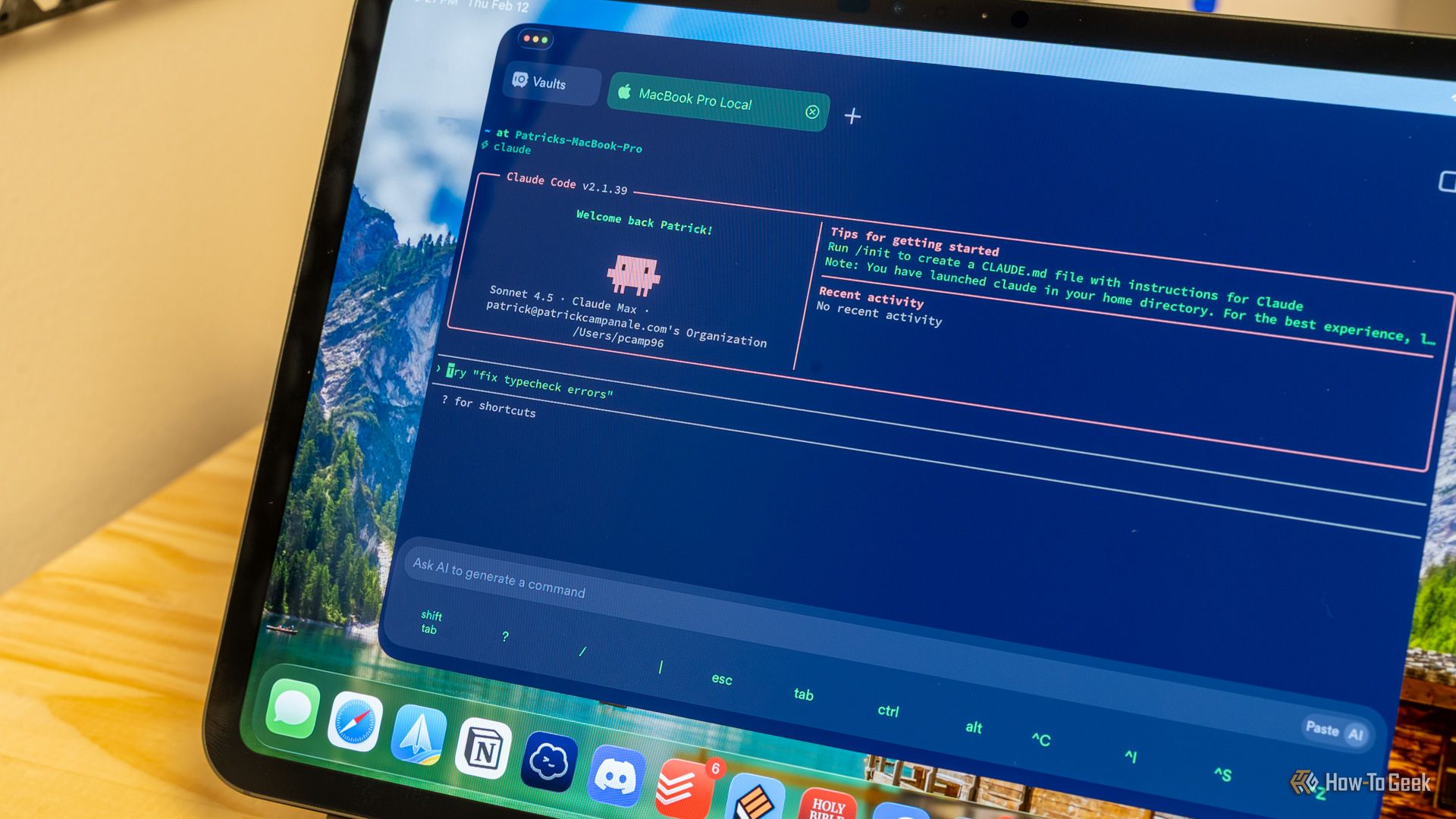
This guide walks you through enabling that hidden mode, configuring it for your own projects, and using it effectively. By the end, you’ll have a personalised project management system running inside Claude with no extra software or plugins.
Prerequisites
Before you begin, you need:
- An active Claude account (free or Pro tier works). If you plan to automate task updates, a Pro account with API access is recommended.
- Basic familiarity with prompt engineering—specifically, how to write clear instructions and use bullet points or tables inside prompts.
- A project idea with at least a few tasks you want to track (e.g., a website launch, a research paper, or a home renovation).
Step-by-Step Instructions
Step 1: Activate the Project Management Mode
Claude’s hidden mode is triggered by a special system prompt that you paste at the start of a new conversation. This prompt tells Claude to behave like a project manager: remember tasks, update statuses, and render a dashboard.
Copy the following template into a new Claude chat:
You are now a project management assistant. Your primary goal is to help me track tasks for my project.

Rules:
- Maintain a running list of tasks with columns: ID, Task Name, Status (Not Started / In Progress / Done), Priority (High / Medium / Low), and Due Date (optional).
- At the end of every response, display the task list in a Markdown table unless I ask otherwise.
- When I report progress, update the relevant task’s status and re-display the table.
- If I ask for a dashboard summary, provide a visual overview using emoji indicators (🟢 Done, 🟡 In Progress, 🔴 Not Started) and a brief comment.
This prompt explicitly defines the behaviour. You can adjust the columns or rules later, but this is a solid starting point.
Step 2: Define Your Project and Populate Tasks
With the mode activated, you now need to tell Claude about your project. Be specific. For example:
I am working on a project called “Redesign Company Blog”. Here are the tasks:

1. Write new branding guidelines – Not Started – High – March 10
2. Design homepage mockup – Not Started – High – March 12
3. Develop responsive template – Not Started – Medium – March 15
4. Create sample posts – Not Started – Low – March 20
5. User testing – Not Started – Medium – March 25

Please add them to your task list and show the table.
Claude will respond with the full table. From now on, that list persists for the entire conversation. You can add more tasks later by simply saying “Add task: ...” with the same format.
Step 3: Update Status via Natural Language
Whenever you complete a task or start working on one, just tell Claude in plain English. For instance:
- “Mark task 2 as In Progress.”
- “I finished the branding guidelines (task 1).”
- “Change task 4 priority to High and due date to March 18.”
Claude will update the table and show the new state. You don’t need to repeat the full list each time—the model remembers the entire context for about 100,000 tokens (dozens of tasks).
Step 4: Request a Visual Dashboard
One of the most powerful hidden features is the ability to produce a dashboard summary. Simply ask:
Show me a dashboard of my project.Claude will output something like:
📊 Project Dashboard: Redesign Company Blog

🔴 Not Started: 1 (User testing)
🟡 In Progress: 2 (Homepage mockup, responsive template)
🟢 Done: 2 (Branding guidelines, sample posts)

Completion: 40% – On track for March 25 deadline.
This works because the rule we set in Step 1 instructed Claude to “provide a visual overview using emoji indicators.” You can customise it by asking for a Gantt-chart style (Claude will approximate with bars of asterisks) or a burndown list.

Step 5: Use the Dashboard to Drive Decisions
With the live dashboard, you can identify bottlenecks at a glance. For example, if too many tasks are “Not Started” and the deadline is soon, ask Claude:
Which tasks are blocking others? Suggest a priority order to finish on time.Claude will analyse the table (based on due dates and dependencies you’ve described) and recommend a sequence. You can then update statuses accordingly.
Step 6: Export the Task List (Optional)
If you need the data outside Claude (e.g., in a spreadsheet), ask:
Export the task list as a CSV pasted in a code block.Claude will produce a comma-separated list that you can copy and paste into Excel or Google Sheets.
Common Mistakes
Mistake 1: Forgetting to Re-activate the Mode
If you start a new conversation without the system prompt, Claude will not know it should act as a project manager. Always paste the instructions at the beginning of a new chat. A workaround is to save the prompt in a text file or use Claude’s Projects feature (where you can set a custom instruction for the whole project).
Mistake 2: Inconsistent Task Format
When adding tasks later, if you deviate from the original column order (e.g., leaving out priority), Claude may misplace the info. Stick to the format used in Step 2: Title – Status – Priority – Due Date (optional).
Mistake 3: Overloading the Conversation
Claude’s memory is limited (though generous). If you add hundreds of tasks or discuss many unrelated topics, it may forget older updates. Keep the conversation focused on the project. For large projects, consider splitting into separate conversations (e.g., one per phase).
Mistake 4: Assuming Automatic Persistence Across Sessions
Claude does not save conversations automatically unless you use the Projects feature or manually copy the chat URL. Always bookmark your project chat or export the task list regularly.
Summary
By feeding Claude a simple system prompt, you unlock a hidden project management mode that can track tasks, update statuses, and produce a clean visual dashboard—all inside the chat. With five straightforward steps (activate, define, update, dashboard, export) and awareness of common pitfalls, you can turn Claude into a lightweight but functional project manager. No coding required, just clear instructions.
Related Articles
- 5 Key Insights into MIT's SEAL Framework: A Leap Toward Self-Improving AI
- Beyond Model Accuracy: Why Inference Infrastructure Is the New AI Bottleneck
- Jailbreak Attacks on AI Language Models Pose Growing Security Threat
- App Store Antitrust Showdown: A Guide to the xAI vs Apple & OpenAI Lawsuit
- The Next Frontier in Enterprise AI: Who Controls the Agent Orchestration Layer?
- Unified Memory Across AI Coding Assistants with Hook-Based Neo4j Integration
- Breaking: Apple’s Xcode 26.3 Unleashes Agentic AI – No More Manual Coding?
- 8 Key Innovations in Claude Opus 4.7 on Amazon Bedrock