How to Access and Use Gmail's AI Inbox and Personalized Writing Assistant
Introduction
Gmail’s latest update brings powerful AI features directly to the bottom bar of your mobile app. After debuting on the web, the AI Inbox now appears on Android and iOS, allowing you to quickly access smart email suggestions and a more personal Help me write assistant. This guide will walk you through the steps to find the new AI Inbox, understand its layout, and use the personalized writing tool to draft emails faster and with better context.
What You Need
- An Android or iOS device with the Gmail app installed
- The latest version of the Gmail app (update from Google Play or App Store)
- A Google account with email history enabled (for best personalization results)
- A stable internet connection
Step-by-Step Guide
Step 1: Update Your Gmail App
Before anything else, ensure you have the latest version of Gmail. New features like the AI Inbox roll out with app updates.
- On Android: Open Google Play, search for Gmail, and tap Update.
- On iOS: Open App Store, go to Updates, and install the latest Gmail version.
Step 2: Locate the AI Inbox in the Bottom Bar
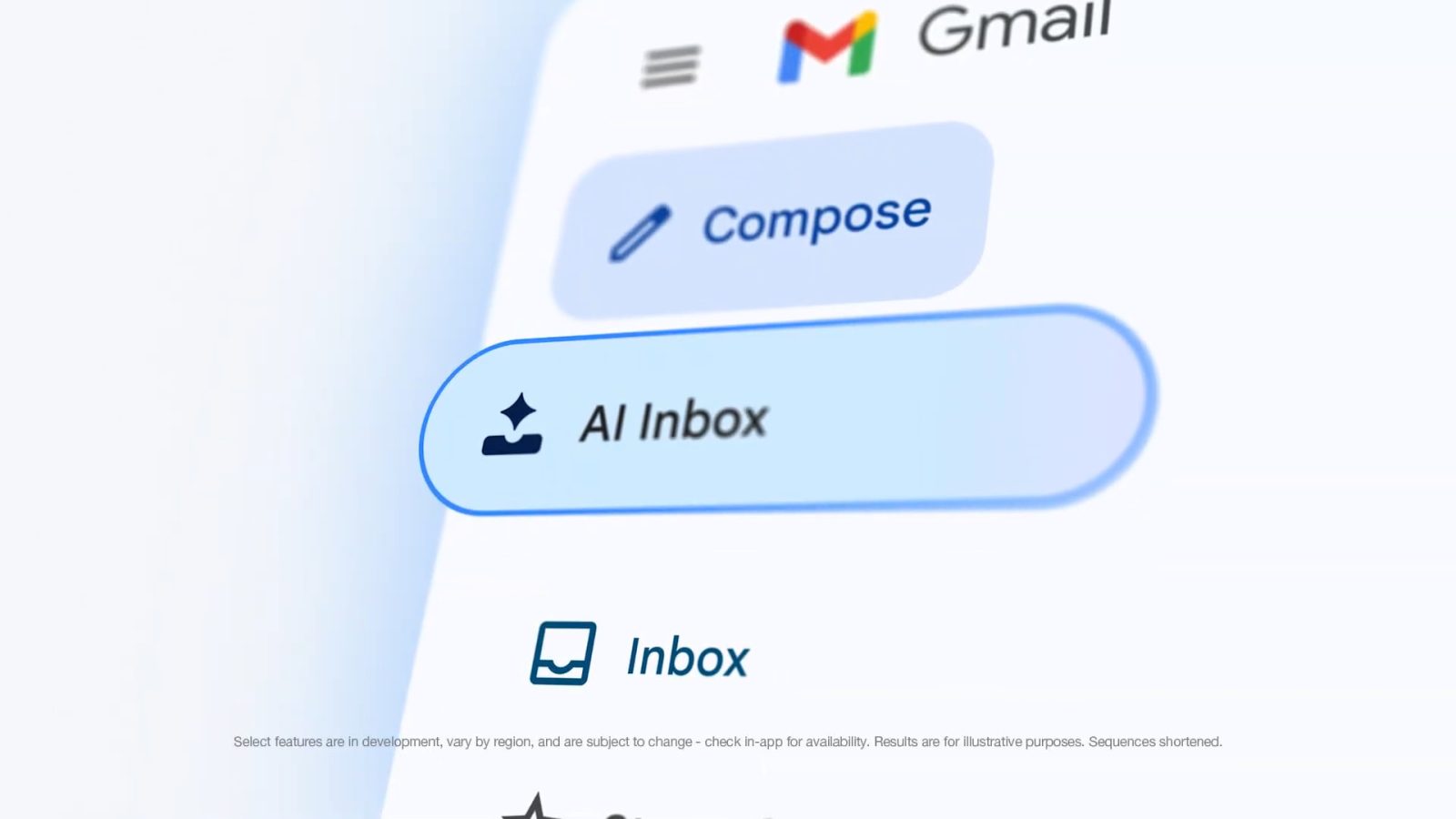
Once updated, open Gmail. The most notable change is in the bottom navigation bar (the row of icons you use to switch between Mail, Meet, and other sections). You’ll now see a new icon labeled AI Inbox – usually a small sparkle or AI badge.
- Tap the AI Inbox icon to open the dedicated AI-driven view.
- It also appears in the navigation drawer (side menu) under Inbox, but the bottom bar is the quickest access point.
Step 3: Understand the AI Inbox Layout
The AI Inbox looks similar to your main inbox but with smart enhancements. It automatically surfaces:
- Emails that need replies or actions
- Important messages flagged by AI based on your behavior
- Suggested quick replies or summaries for long threads
You can interact with these suggestions like any other email – tap to open, swipe to archive, or use the built-in reply buttons. The AI learns from your actions over time.
Step 4: Use the Personalized Help me Write Feature
This is where the AI becomes more personal. When composing a new email, follow these steps:
- Tap the Compose button (pencil icon).
- In the compose window, look for a small pen with a sparkle icon – that’s the Help me write trigger.
- Tap it. A prompt will appear. You can describe what you want to write, e.g., “Follow up about the project deadline” or “Thank you for the lunch invitation.”
- Now, the AI uses your personal context – previous emails, calendar events (if integrated), and writing style – to generate a draft tailored to you. For example, it may reference a recent conversation or use your usual tone.
- Review the draft, make any edits, and tap Send.
Note: The personalization improves as you use the feature more. It respects your privacy and only uses data within your Google account.

Step 5: Customize AI Settings (Optional)
You can control how much personal context the AI uses:
- Go to Settings > AI & Personalization (or similar, exact name may vary by version).
- Toggle options like Use email history or Enable personalization.
- You can also reset the AI’s learning data if you want a fresh start.
Tips for Getting the Most Out of AI Inbox and Personalization
- Keep your Gmail app updated – new AI features and improvements are rolled out frequently.
- Enable email history for the best Help me write experience; the AI uses your past messages to match your tone and context.
- Use specific prompts when asking the AI to write – instead of “write an email,” say “write a short, polite reminder about the meeting tomorrow” for better drafts.
- Review AI-generated drafts carefully – while smart, the AI can sometimes misinterpret nuance. Always double-check facts and tone.
- Explore the AI Inbox regularly – it surfaces important emails you might have missed, especially if you receive a high volume of messages.
- Provide feedback – Gmail’s AI learns from taps and edits. If a suggestion is wrong, manually correct it; the system will adapt.
For additional details on AI features, check out Google’s official support pages or the in-app help menu.
Related Articles
- Pixel 11 Series Facing RAM Cutback as Global Shortage Bites — Leaked Specs Show 8GB Base
- Apple's Strategic Delay of iPhone 18 Revealed: Leaker Details Market-Driven Pause
- How DoorDash Modernized Its iOS Testing with Copilot and Swift Testing
- Unlocking YouTube Music's Foldable-Friendly Design: A Hidden Setting Revealed
- Swift on Windows Gets a Dedicated Workgroup: 6 Things Developers Need to Know
- React Native 0.84: Hermes V1 and Precompiled Binaries Become Default
- Apple Insights: iOS 27 Camera AI, Tim Cook's Biggest Mistake, and iPhone Shutdown Woes
- React Native 0.81 Released: Mandatory Android 16 Edge-to-Edge, Deprecated SafeAreaView, and Faster iOS Builds