How to Check Your Windows Webcam Access Logs for Suspicious Activity
Introduction
Your webcam is a powerful tool for video calls and streaming, but it also represents a significant privacy risk if accessed without your consent. Malware or unauthorized apps could activate your camera silently, potentially spying on you, your family, or your workspace. Windows keeps a detailed history of when and which apps have used your webcam, offering a valuable way to detect unwanted access. This guide will walk you through the steps to review that history, identify anomalies, and take control of your camera permissions.
What You Need
- A Windows 10 or Windows 11 computer with a built-in or external webcam.
- Administrator access to the device (recommended for full log access).
- Basic familiarity with navigating Windows Settings and Event Viewer.
- Optional: antivirus software for further investigation if suspicious activity is found.
Step-by-Step Instructions
Step 1: Open Windows Settings
Click the Start button (Windows logo) in the taskbar, then select the Settings gear icon. Alternatively, press Windows key + I to open Settings directly.
Step 2: Navigate to Privacy & Security
In the Settings window, click on Privacy & security (in Windows 11) or Privacy (in Windows 10). This section controls permissions for various device features, including your camera.
Step 3: Access Camera Permissions
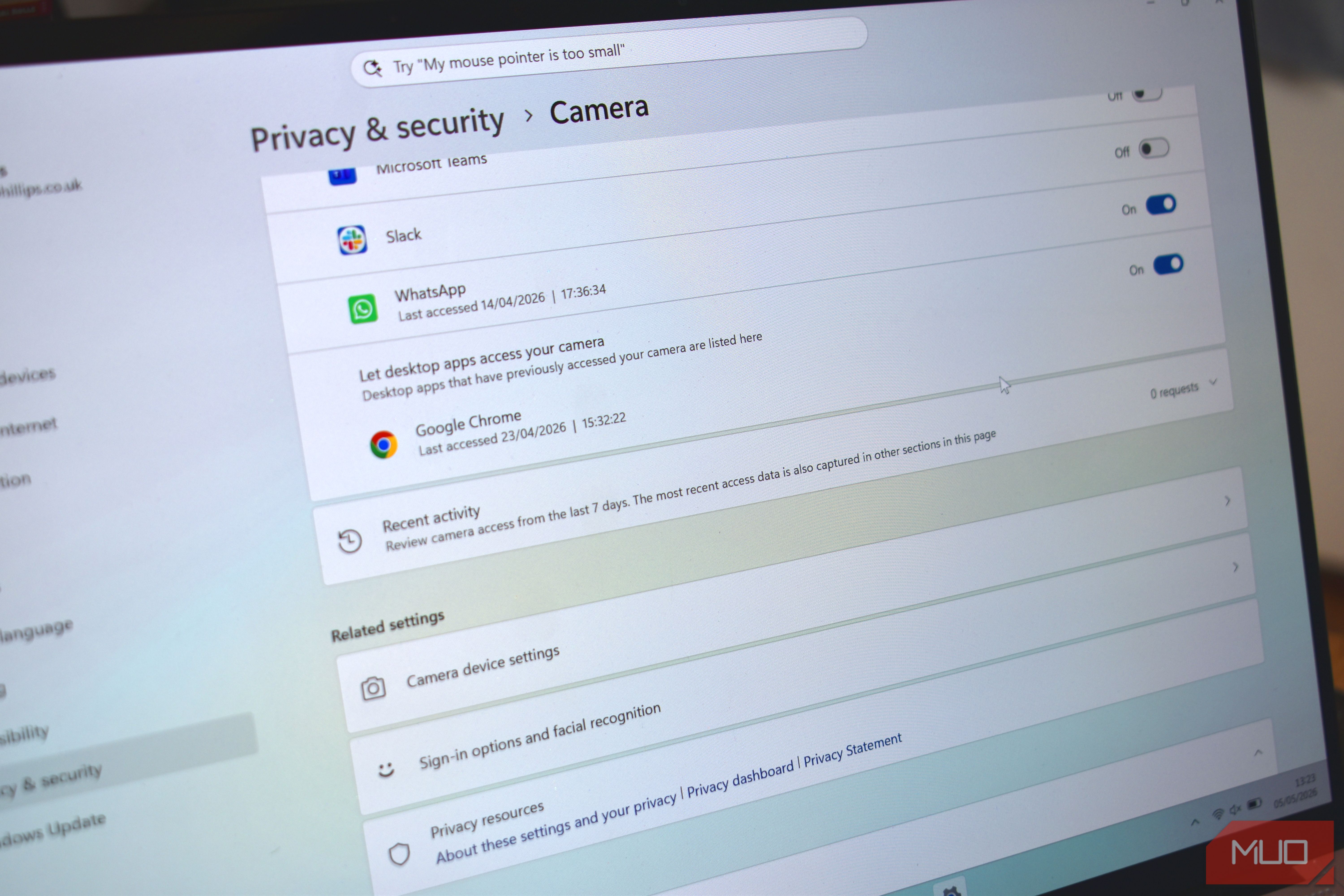
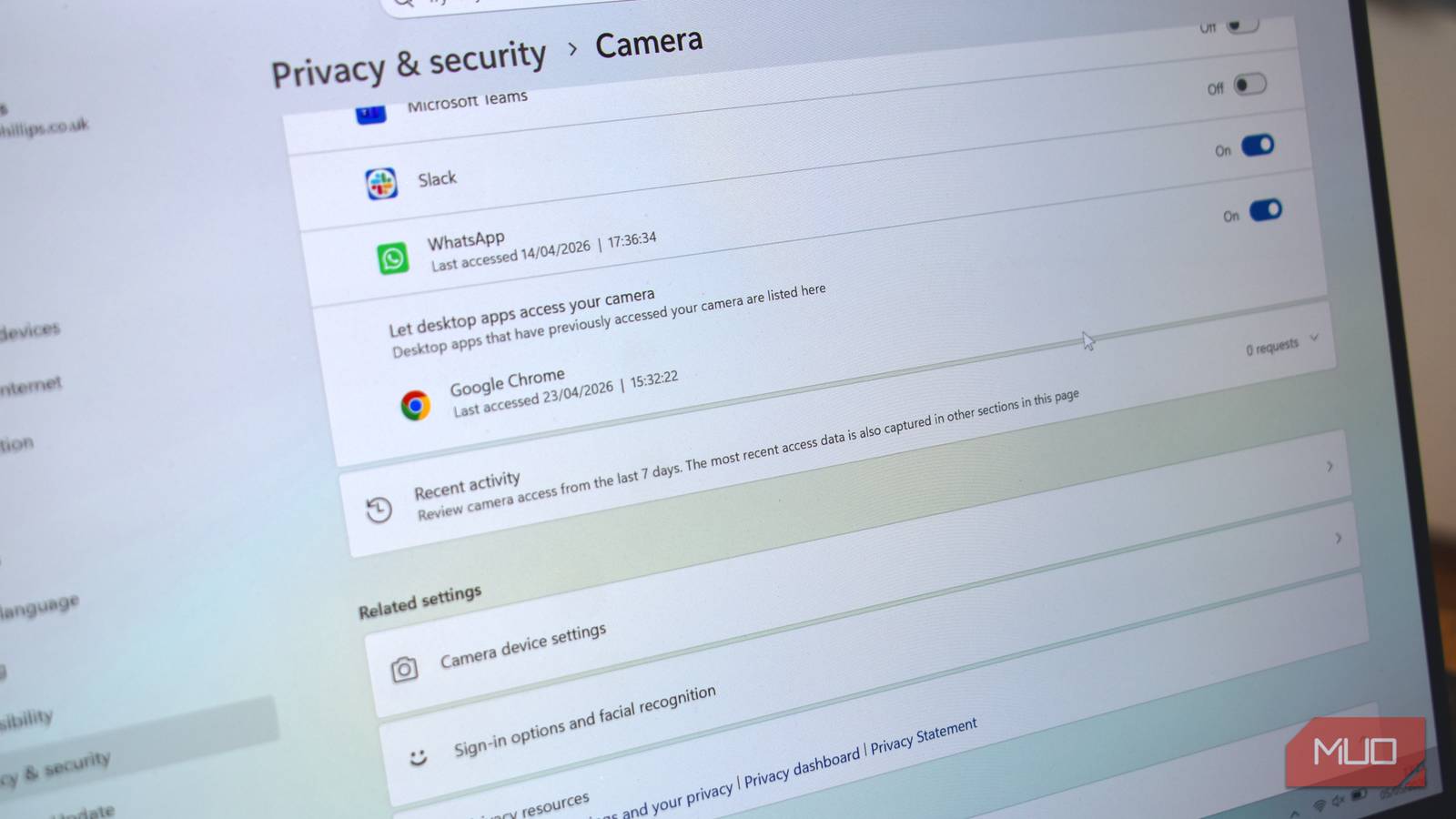
Under the App permissions section, select Camera. Here you’ll see a list of apps that have requested camera access, along with a master toggle to allow or block camera use across all apps. More importantly, just below the app list, you’ll find a Recent activity section that shows a chronological log of when each app accessed your webcam.
Step 4: Review Recent Webcam Activity
Scroll down to Recent activity. Windows displays entries with the app name, date, and time of access. Look for anything suspicious: apps you don’t recognize, access times when you weren’t using any video software, or repeated attempts from the same app. If you see an unknown app, it could be malware or a misconfigured program.
Step 5: Check for Detailed Logs in Event Viewer
For a deeper dive, Windows also logs webcam events in the Event Viewer. Press Windows key + R, type eventvwr.msc, and hit Enter. In Event Viewer, navigate to Windows Logs > Security (some versions might use Applications and Services Logs > Microsoft > Windows > Webcam). Look for Event IDs related to webcam access (e.g., 1001 or 1002). Filter the log using the Filter Current Log option on the right to search for “camera” or “webcam” keywords. This provides a more detailed timestamp and often the process ID or app name.
Step 6: Revoke Suspicious Permissions
If you identified any unwanted or unrecognized app using your camera, go back to Settings > Privacy & security > Camera. Toggle off the permission for that specific app. You can also disable camera access entirely via the master toggle, but that may inconvenience legitimate uses. For persistent threats, consider running a full malware scan and updating your antivirus definitions.
Step 7: Enable Camera Access Notifications (Optional)
To prevent future silent access, enable notifications when your camera is turned on. In Windows 11, settings include a privacy indicator (a green light) that automatically appears—no extra steps needed. In Windows 10, ensure that the camera indicator light is functional (it’s hardware-dependent). You can also use third-party tools or your webcam’s own software to display an on-screen alert.
Tips for Maintaining Webcam Privacy
- Physically cover your webcam when not in use—a simple sticker or sliding cover blocks the lens even if malware activates it.
- Regularly review the Recent activity list (Step 4) to catch unauthorized access early.
- Keep Windows and all drivers updated to patch vulnerabilities that malware could exploit.
- Use a dedicated malware scanner that monitors webcam activity, such as Malwarebytes or your antivirus suite’s webcam protection feature.
- Restrict camera permissions only to essential apps (e.g., Zoom, Microsoft Teams, your camera app). Remove permissions for games or utilities that don’t need it.
- Educate family members about checking their own webcam history, especially if children use the same device.
- Consider a hardware kill switch for integrated webcams on some laptops (check your device’s manual). This physically disconnects the camera power.
By following these steps, you take a proactive stance against webcam spying. Remember, no single measure is foolproof—combining regular log checks, physical covers, and security software provides the strongest defense. Stay vigilant and keep your private life private.
Related Articles
- Cyber Threat Landscape: Key Incidents and Vulnerabilities from Early May
- A Step-by-Step Guide to Meta's Enhanced End-to-End Encrypted Backup Security
- 7 Reasons Why Traditional App Security Is Failing in the Age of AI and DevOps
- 7 Critical Facts About the UNC6692 Social Engineering Malware Attack
- Cyber Police Unmask Teenage Infostealer Suspect Linked to 28,000 Compromised Accounts
- Meta Advances End-to-End Encrypted Backup Security with New Fleet Features
- Iranian Hackers Breach FBI Director’s Gmail, Leak Personal Data in Retaliation for Domain Seizures
- Enterprise Defense Playbook: How to Protect Your Organization in the Age of AI-Powered Vulnerability Discovery